Documentation
Getting started
How to connect Hyperliquid to Skalpy
Intro
Hyperliquid is a high-performance Layer-1 (L1) blockchain optimized for decentralized crypto trading.
It utilizes an API Wallet system to separate execution from asset custody. Skalpy uses your wallet's private key to authorize a dedicated agent wallet for the terminal.
Skalpy does not store your private key. It is used once for authorization and is never retained.
Step 1: Create Hyperliquid Account
Before connecting to Skalpy, your Hyperliquid account must be active and funded on-chain.
Create a new EVM wallet for Hyperliquid trading. Do not add your primary wallet keys to Skalpy.
Wallet Requirements: Connect any EVM-compatible wallet (e.g., MetaMask, Rabby, etc.) to Hyperliquid. Alternatively, use the built-in Hyperliquid Email Wallet (Privy).
Account Activation: You need to deposit funds to create your account on the HyperCore blockchain. Skalpy will return an "Account not found" error if the account is unfunded.
Deposit Funds: Hyperliquid uses USDC as its primary collateral and unit of account.
Use the 'Deposit' button in the Hyperliquid UI to bridge at least 15 USDC from the Arbitrum network.
This amount is required to cover the 10 USDC minimum order size, Hyperliquid deposit and withdrawal fees.
Step 2: Configure Account Settings
Adjust your Hyperliquid account based on your preference. It is recommended to:
Open the Hyperliquid web interface and navigate to Trade page.
Make sure 'Unified' account mode is selected.
In Unified Mode, spot and perpetual balances are pooled to increase capital efficiency.
Step 3: Export Your Private Key
Locate the private key for the specific address connected to your Hyperliquid account.
Option 1: EVM Wallets (MetaMask/Rabby)
Navigate to your EVM account details and select an option to show private keys.
Use a separate EVM wallet dedicated to Hyperliquid trading in Skalpy, and do not use your main wallet.
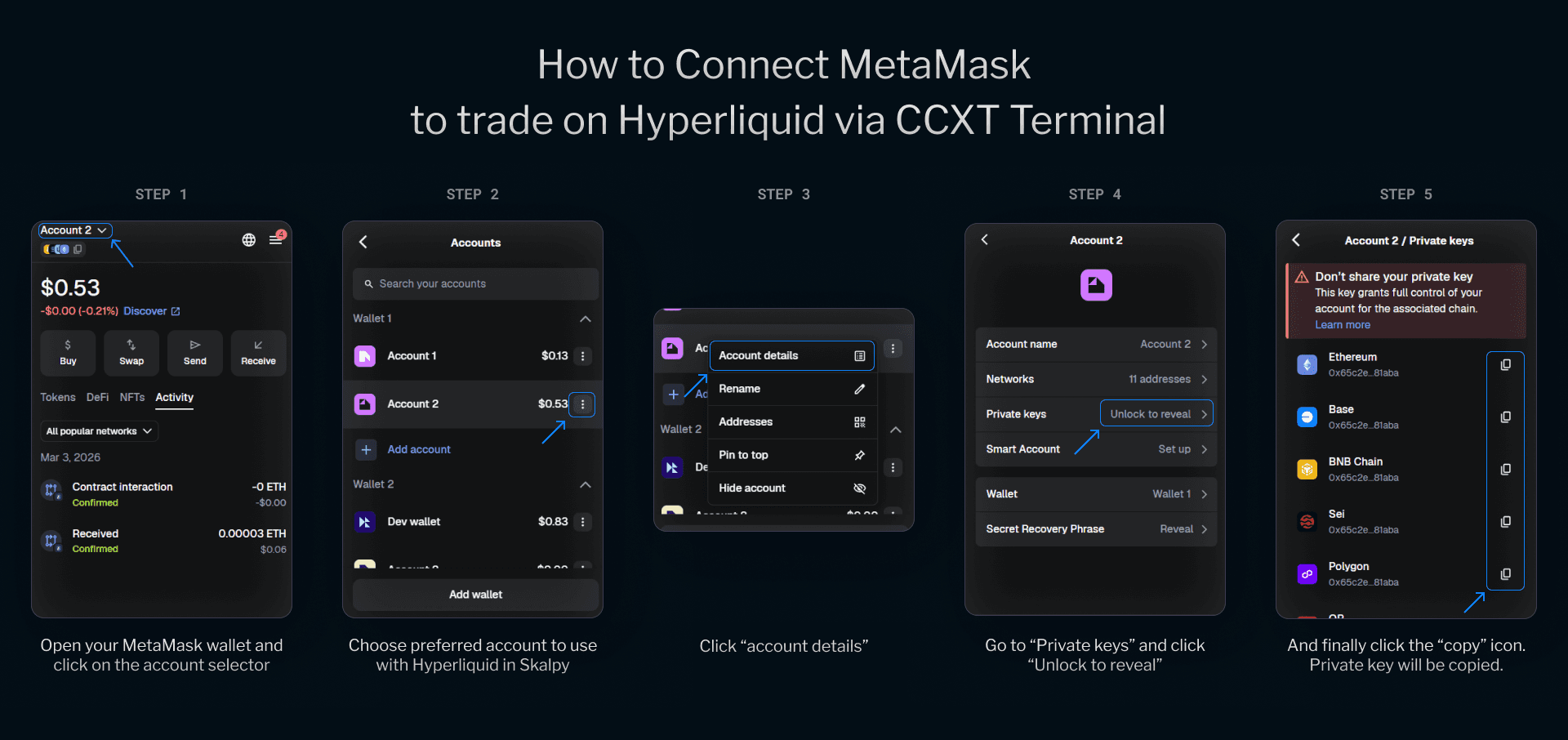
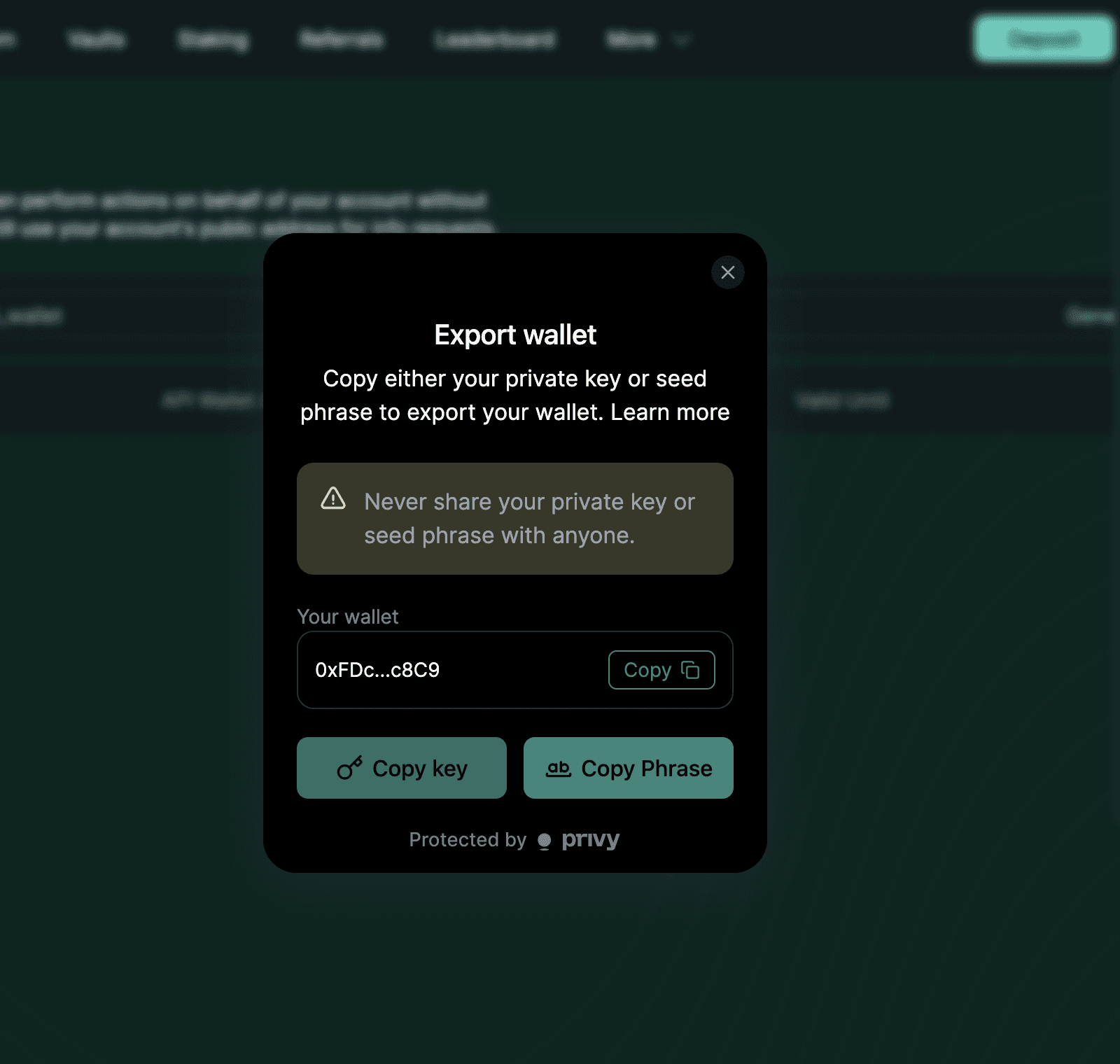
Option 2: Email Wallet (Privy)
In Hyperliquid, go to Settings → Export Email Wallet → Copy key.
Step 4: Connect to Skalpy
The option is shown after opening a Hyperliquid trading pair.
In the Skalpy workspace, select any Hyperliquid pair.
In the linked widget, click “Connect” to open a modal window.
Paste your private key into the designated field.
Confirm to authorize the Skalpy API Wallet.
Do not use the same private key across multiple simultaneous Skalpy instances, as this causes order placement errors.

Verification
Check these elements to ensure the wallet is active and synchronized:
Your Hyperliquid account balance appears in the Assets.
A new "Skalpy" API wallet is visible in your Hyperliquid account API page.
Need more details? Check the Hyperliquid FAQ.